Order #4417 — “there was no second burger”
A missing item
Compare the receipt with the visible packing sequence. Note which items enter the bag and which contents are obscured.
Find the recording in seconds using the order number and date when a customer asks about an order.
DKK 595 per camera / month excl. VAT
Startup from DKK 5,900 per camera excl. VAT
Hardware and setup are included. Final startup pricing depends on installation complexity and your requirements.
Minimum rental period: 6 months. The rental then renews automatically for successive 6-month periods. Written cancellation must be received at least 30 days before renewal.
The camera sits above the packing desk and looks down into the open bag as the employee packs. An optional marked packing area helps the team keep the work in view. Include the till screen if order numbers need to be read from it.
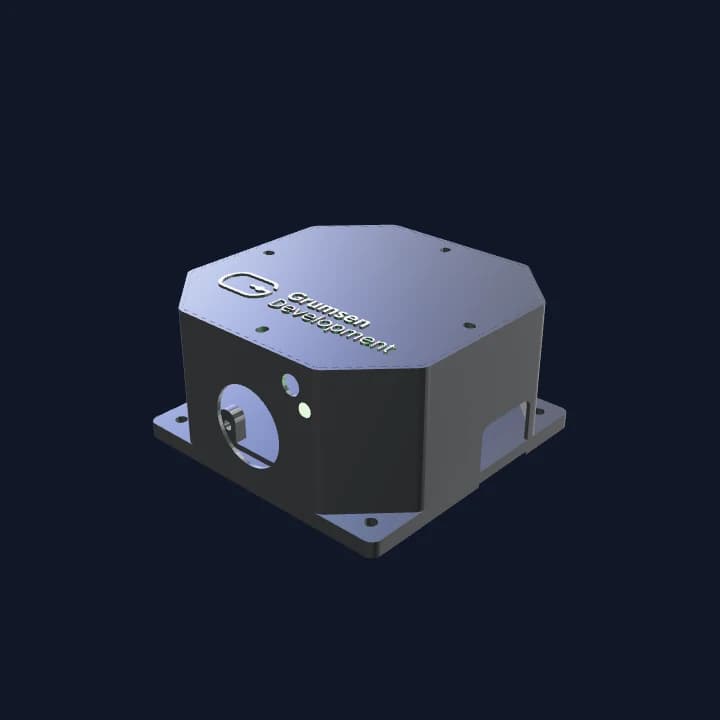
Camera, compute and network connection are housed together in a 118 mm enclosure. Discuss power and mounting with ClipPack for your station.
Find uploaded clips in Recordings using order numbers and dates. Follow the sequence on the Timeline, with access controlled by your account’s permissions.
A contact beside the packing station starts the clip, and the indicator shows that recording is in progress. A second tap ends the clip.
A rental business uses QR scanning to link return footage to the product’s latest rental order. When there is damage, documentation goes directly to customer service to assess the case and follow up with the renter.
Staff start and stop recordings at the counter. Uploaded clips appear in Recordings with times, linked order numbers and OCR review information.
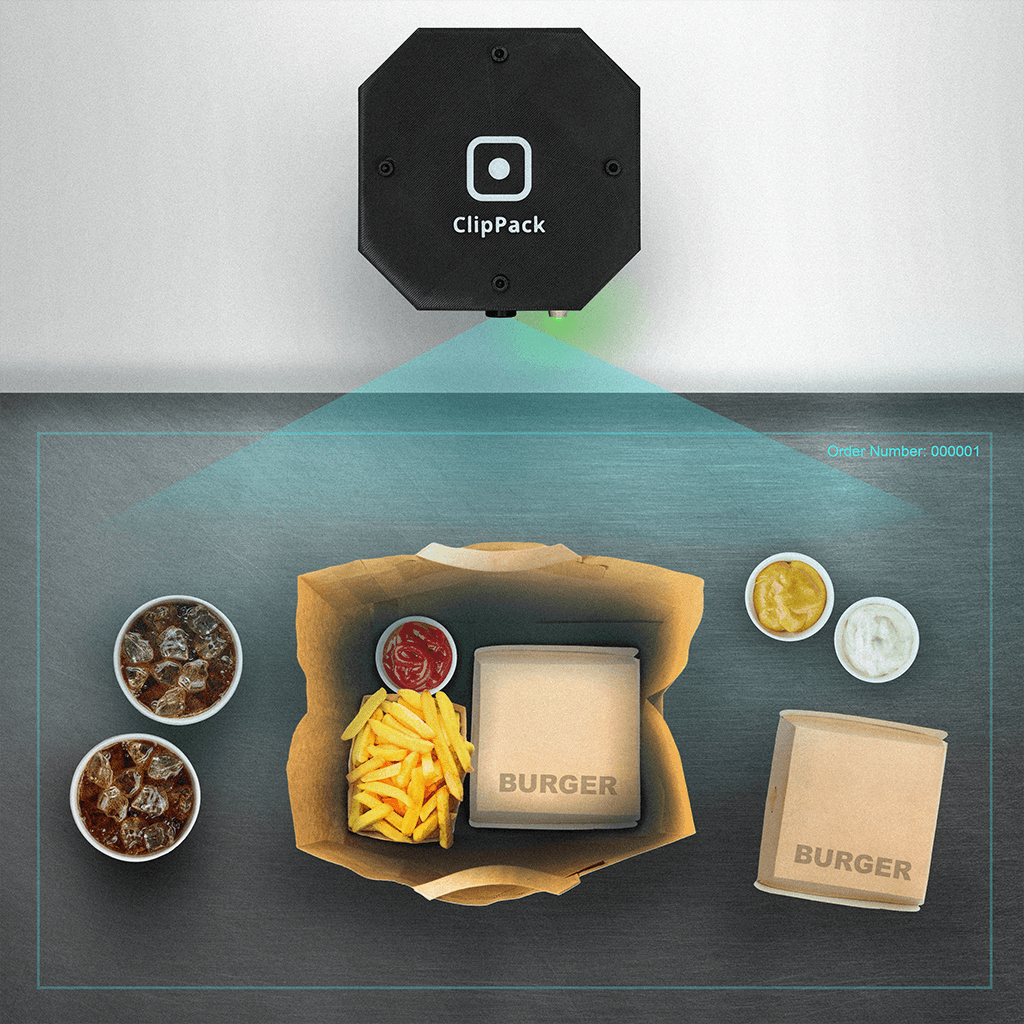
Staff tap the contact at the packing station. Recording begins without opening an app or logging in at the counter.
A second tap ends the clip. Recording length can be customized to your packing or handover workflow; agree the duration with ClipPack during setup.
Order-number labels from the captured POS screen are attached to the recording when available. Check the labels against the order details when reviewing a clip.
With the order number and relevant date, you can find the linked recording in seconds. Open the clip once its status is Ready. Use the time and device if the order number is missing.
We reply by email to clarify your workstations, camera coverage and any integration requirements.
Review the camera quantity, monthly rental, final startup price and included equipment, together with the rental period, automatic renewal and cancellation notice, before deciding.
We agree the installation details and check a complete recording with your team. Recording length and retention are agreed during setup.
Find the relevant footage, check what it shows and correct an order label when needed. Your team keeps control of the review.
Scroll through the workflow, or choose a step.
Open Recordings and enter the complete order number with a start and end date. Narrow by device if you have access to device details. Numbers can repeat, and a clip can carry several labels. If OCR missed the number, clear the order search and look by date, time and device.
Find the relevant clip within the right date range
Choose Play recording from the row menu. Compare the start and finish times and visible sequence with the receipt. In this example, a cup is beside the bag, but final handover is outside the camera view. That does not establish that the drink was collected.
Separate visible actions from what remains unknown
This example clip carries labels 417 and 471. After checking the receipt and footage, a colleague with permission removes the incorrect 471 label through Edit order numbers. The original removed OCR reading remains visible. The video is unchanged, and corrected clips remain in the OCR exceptions filter.
Keep the right association and the original OCR reading
Record the device, date, recording start time and relevant moment in your existing case notes. A colleague with access can reopen the recording in ClipPack. Playback URLs expire shortly. The person handling the enquiry decides the response using the footage and other available records.
Give the next person a useful recording reference
Fictional order details and simplified application views. The packing scene is an illustration, not customer footage. Access follows your permissions; case notes and the customer response stay in your existing service process.
See the camera, indicator light and mounting bracket in these product photos. Talk through camera placement and recording length with us for your restaurant.
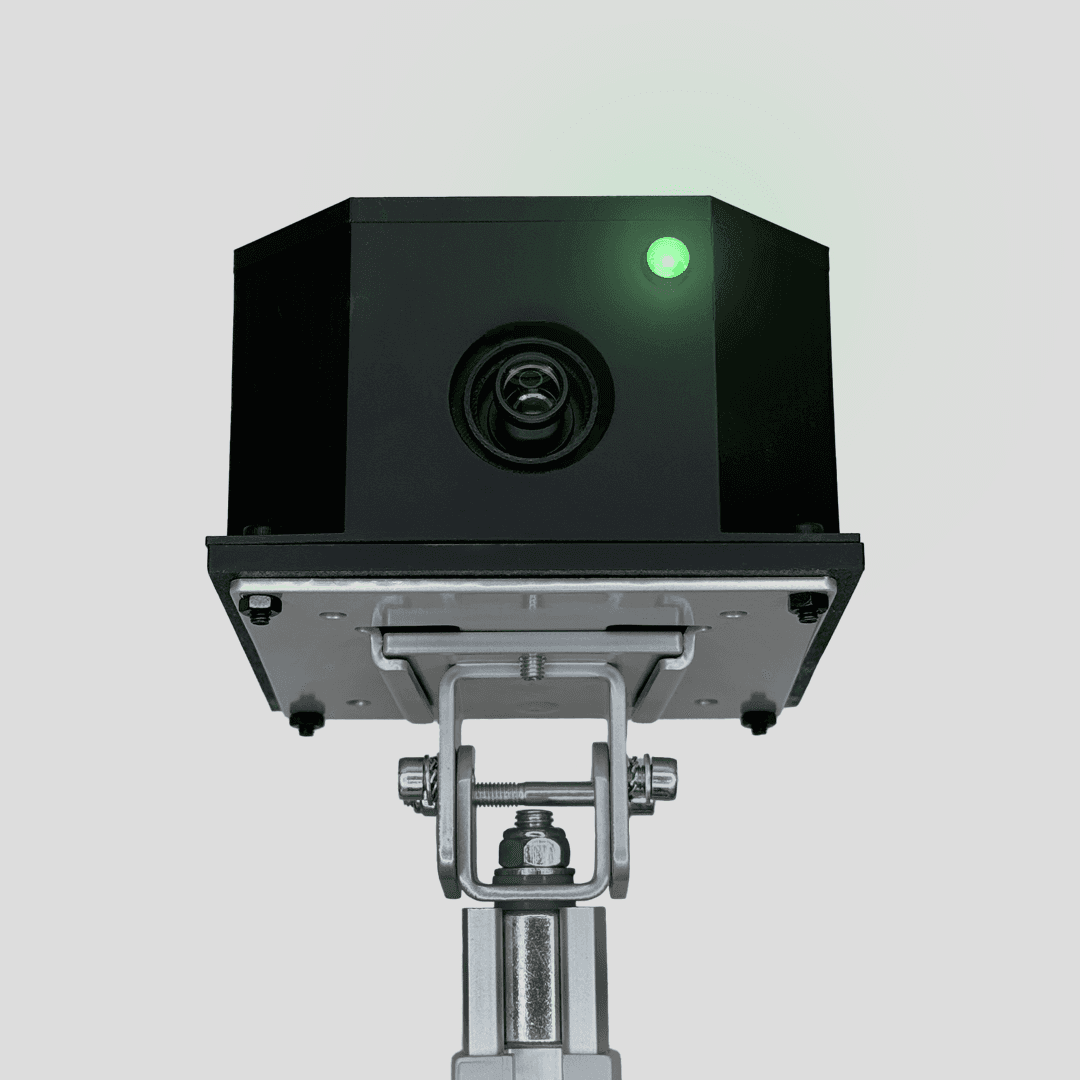
The front view shows the lens, indicator light and bracket. Position the camera to cover the packing or handover step you want to review.
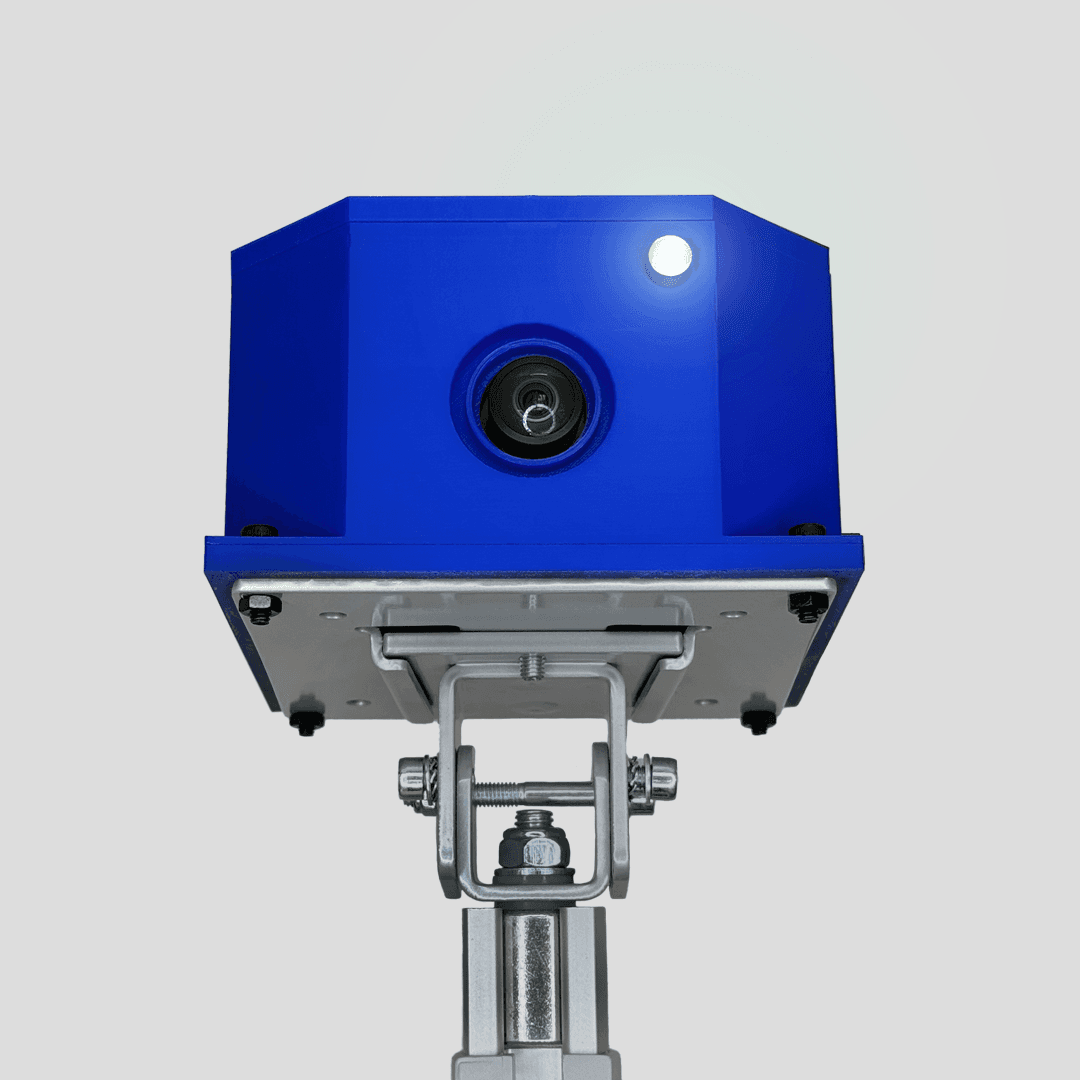
This blue unit shows the camera and indicator from the front. Confirm the finish and mounting arrangement for your installation with ClipPack.
A recording can help you investigate what was packed or handed over. These examples show what to review when the relevant action is visible in the clip.
Order #4417 — “there was no second burger”
Compare the receipt with the visible packing sequence. Note which items enter the bag and which contents are obscured.
Drive-thru lane 2, 12:41
Compare the order reference, time and visible handover. A counter-only view may not show which vehicle received the bag.
Order #4392 — marked never collected
Review whether the bags and drinks leave the covered collection area. Record any gap between packing and handover.
Disputed transaction, eleven days later
Review an available handover recording alongside the receipt. Follow the payment provider’s current process; footage does not guarantee an outcome.
Training, week one
Show someone what a clean handover looks like using real clips from their own counter, not a training video.
Multiple devices, one organization
Review recordings across the devices in your organization. Use dates and order labels to find footage, then open the relevant device when you need its health information.
Find recordings across your organization’s devices and follow sequences on the Timeline. Each person’s permissions control access.
See the device’s last reported upload queue and the number of failed recordings. Check whether the clip you need has reached Ready status.
Recordings follow the retention period configured for your organization. Confirm that period with ClipPack during setup.
Check when a device was last seen, its reported software version and available storage. Use those readings to investigate recording or upload gaps.
Device reports and recording activity give you two different views of your setup. Check the device, then confirm the specific recording is available.
Scroll through the workflow, or choose a step.
Open a device to see when it last reported, its upload queue, free disk space and failed recording count. In this example the device is online, but two uploads are still queued and one recording failed. Open the recording list to check whether the clip you need is Ready. Online status alone does not confirm that it uploaded.
An online device and a playable clip are separate checks
The dashboard shows recording count, duration, storage and failed uploads for the selected period, with daily and hourly charts, weekday patterns and device comparisons. Open a device for its own activity view. A clip can contain several order labels, so these counts are not a count of completed orders.
Use recording activity to understand coverage and follow-up
Illustrative device names, times and counts. Health is based on the latest device report. Activity counts recordings, not orders or sales, and does not identify missing items or damage.
The ClipPack camera is mounted above the packing or handover station. Staff tap to start and stop a clip, and recording length can be customized during setup. Order-number labels read from the captured POS screen are linked to the recording when available.
Open Recordings and search the complete order number with a start and end date. Use the device filter when you have permission to view devices. Compare the date, Started time and Order numbers, then choose Play recording for a Ready clip. If a number is missing or incorrect, search by date and time without it. You can also open the relevant device’s Recordings list.
ClipPack associates recordings with order-number labels and recording times. Find footage in Recordings or follow recordings on the Timeline. The camera focuses on the packing or handover station; useful coverage depends on placement and when staff record.
Open a device from the Devices list in your organization's account to see its recordings. Each device page also shows when it was last seen, its last reported upload queue and the number of failed recordings.
Recording history depends on the retention period configured for your organization. Confirm the period with ClipPack during setup and contact us if it needs to change. Scheduled cleanup removes expired recordings; the app does not offer a self-service retention setting.
Opening a recording in ClipPack requires a signed-in account with permission to read recordings in that organization. Editing order-number labels requires a separate permission. Playback links expire shortly, so keep a recording reference for an authorized teammate to reopen in the app.
Yes. A clip can carry several order-number labels when it covers more than one order. Compare the recording date, time and visible sequence with each order. Staff with permission can correct the labels through Edit order numbers; this changes the association, not the video.
A recording must have Ready status before Play recording is available. Uploading and Failed recordings cannot be played. If a clip is unavailable, check the device’s last reported queue and failed recordings. A device being online does not establish that a particular order was recorded or uploaded.
Use the receipt, packing record and handover footage to separate what you can observe from what still needs checking.
Read the missing-item investigation guideWalk through split bags, drinks, interrupted handovers and orders moved to a waiting bay before relying on a clip.
Read the drive-thru handover checklistPrepare camera placement, recording duration and a test order before agreeing a setup for your restaurant.
Read the installation guideUse six checks at the packing station and download a free A4 sheet for your team.
Read the packing checklistTell us how many restaurants and workstations you have, and what you want to document. We can clarify the camera quantity, setup and complete price.
DKK 595 per camera / month excl. VAT
Startup from DKK 5,900 per camera excl. VAT
Hardware and setup are included. Final startup pricing depends on installation complexity and your requirements.
Minimum rental period: 6 months. The rental then renews automatically for successive 6-month periods. Written cancellation must be received at least 30 days before renewal.
We reply by email to clarify your workstations, camera coverage and any integration requirements.
Review the camera quantity, monthly rental, final startup price and included equipment, together with the rental period, automatic renewal and cancellation notice, before deciding.
We agree the installation details and check a complete recording with your team. Recording length and retention are agreed during setup.